Integrations
iCal Feeds
Subscribe to a personal calendar feed of approved leave requests
Overview
Each user gets a personal iCal feed URL that contains their approved leave requests. Subscribe to it from Google Calendar, Apple Calendar, or Outlook to see absences alongside your regular schedule.
The feed updates automatically — when a new leave request is approved, it appears in your calendar without any action.
Admin Setup
Before users can generate feed URLs, an admin must set the ICAL_SECRET environment variable. This secret is used to generate secure, per-user URLs.
Add to .env.local:
ICAL_SECRET=a-long-random-string
Generate a random value with:
openssl rand -hex 32
Warning: Changing
ICAL_SECRETinvalidates all existing feed URLs. Every user will need to re-copy their URL and update their calendar subscriptions.
Get Your Subscription URL
- Go to Profile → Connected Services.
- In the Calendar section, you'll see your personal iCal feed URL.
- Click Copy URL to copy it to your clipboard.
The URL looks like:
https://your-domain.com/api/calendar/{userId}/{hash}.ics
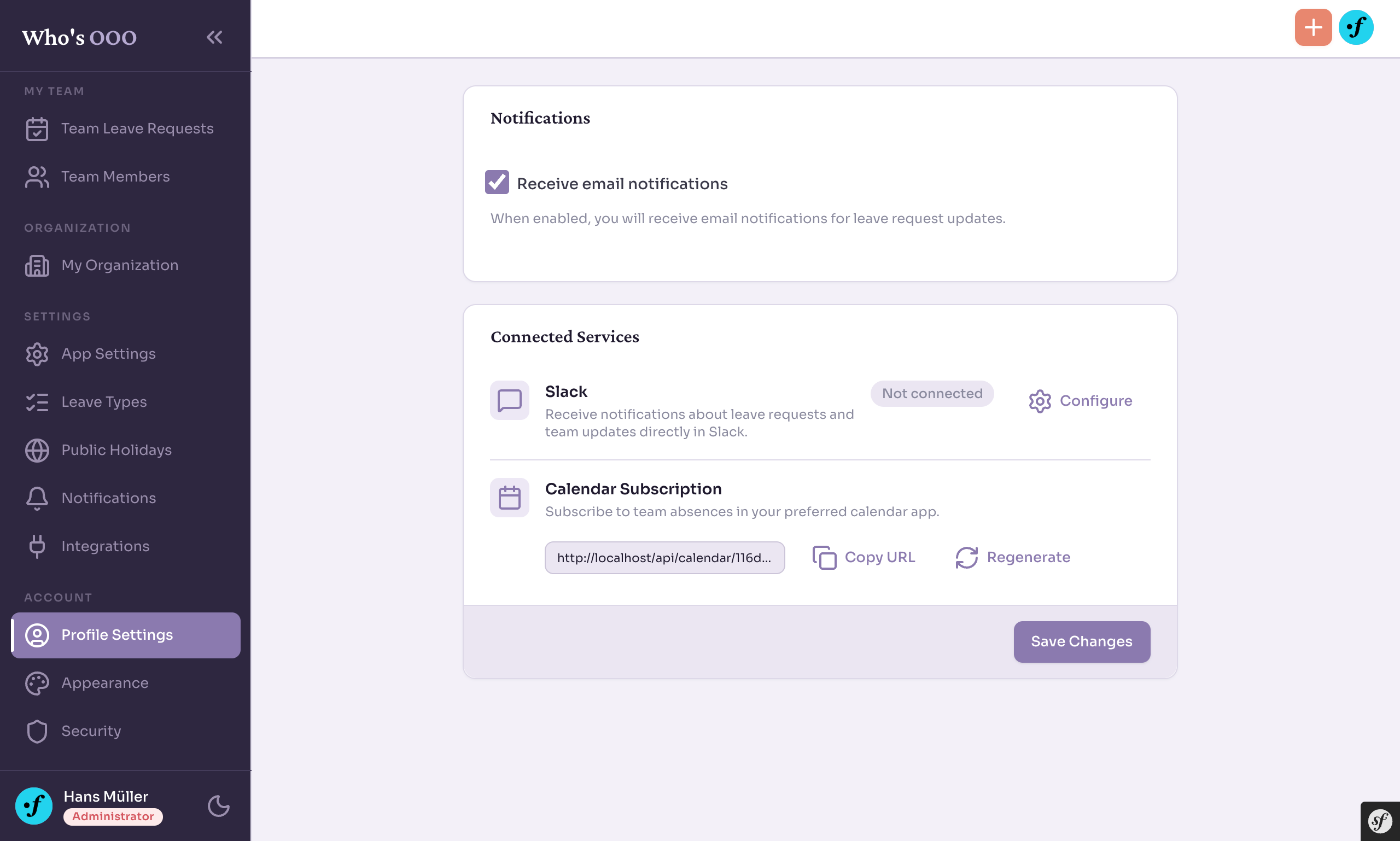 Your personal iCal feed URL in the Connected Services section
Subscribe in Google Calendar
- Open Google Calendar.
- On the left sidebar, click the + next to "Other calendars".
- Select From URL.
- Paste the iCal feed URL.
- Click Add calendar.
Google Calendar syncs external feeds roughly every 12–24 hours. New leave requests may take a while to appear.
Tip: Google Calendar's sync interval is not configurable. If you need faster updates, use Apple Calendar or Outlook, which tend to refresh more frequently.
Subscribe in Apple Calendar
- Open Calendar on macOS.
- Go to File → New Calendar Subscription…
- Paste the iCal feed URL and click Subscribe.
- Set the auto-refresh interval (e.g. every hour) and click OK.
On iOS: go to Settings → Calendar → Accounts → Add Account → Other → Add Subscribed Calendar and paste the URL.
Subscribe in Outlook
- Open Outlook on the web.
- Click Add calendar in the sidebar.
- Select Subscribe from web.
- Paste the iCal feed URL, give it a name, and click Import.
Regenerate Your URL
If you suspect your feed URL has been shared or compromised, you can regenerate it:
- Go to Profile → Connected Services.
- In the Calendar section, click Regenerate URL.
- Copy the new URL and update your calendar subscriptions.
The old URL stops working immediately.
Warning: After regenerating, you must update the URL in every calendar app where you subscribed. The old URL will return an error.